
Insights
Debugging Django in VSCode without using --noreload
Ceesjan Luiten
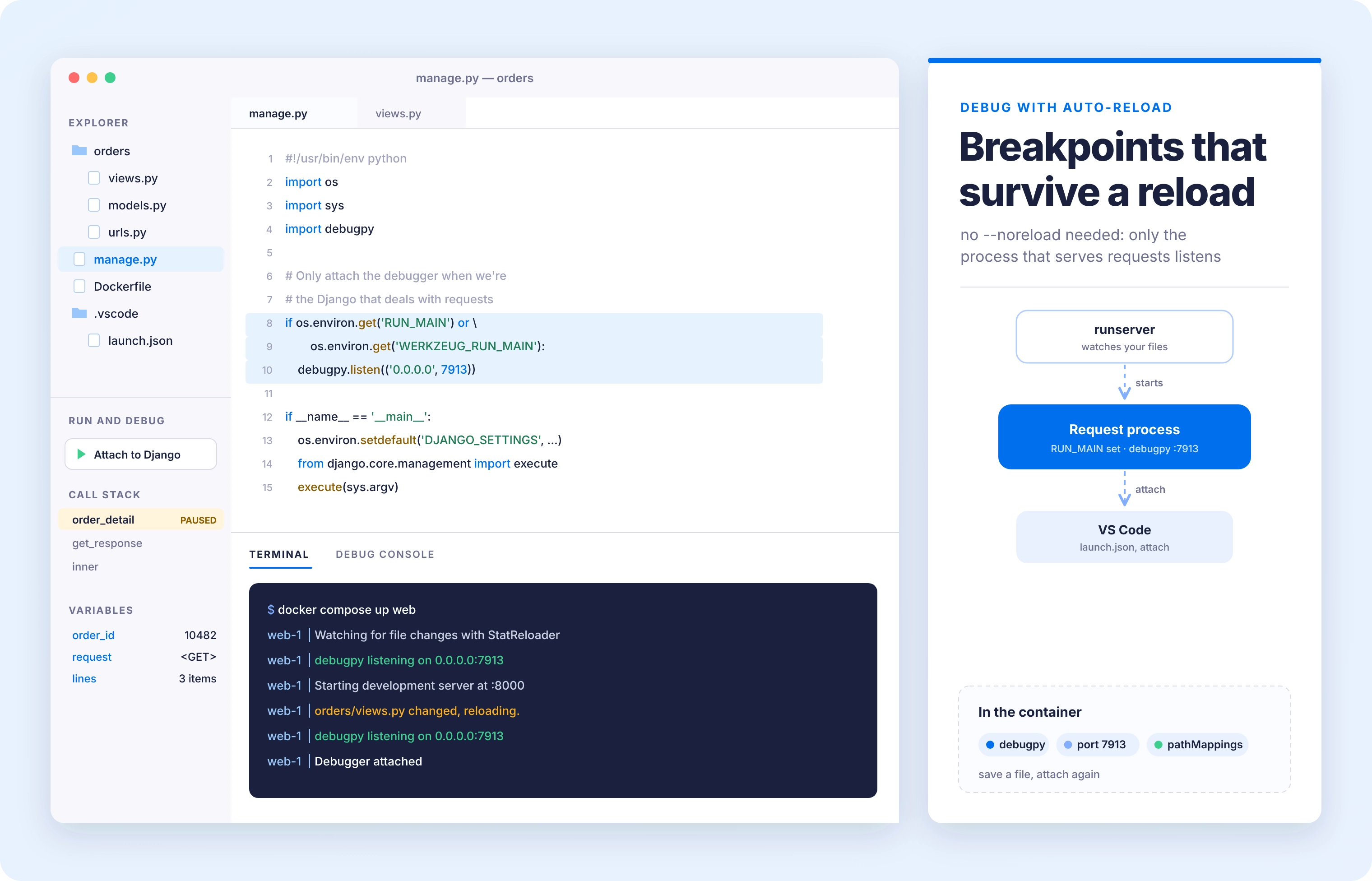
Numerous sites on the internet mention that using the debugger of VSCode with Django in Docker is possible but require you to disable the reloading aspect of the runserver (Issue #1057 of ptvsd, Remote debugging in Docker (for Django apps), Debug python application running in Docker). I'll show you that this is not actually the case, you can have your cake and eat it too.
The problem stems from the fact that Django loads itself twice in order to support reloading even when Django crashes. The first instance of Django knows you want auto reloading and launches a second instance. This second instance is the one that deals with requests. As soon as it crashes it will be restarted by the first Django. Now if both instances try to claim the same TCP port for remote debugging you'll run into "Address already in use" errors.
The solution then is to make sure the debugger only activates for the second instance, and not for the first. By looking at the source code of Django's utils/autoreload.py and Django-Extensions' management/commands/runserver_plus.py you'll end up with this piece of code that works in unison with the reloading functionality. Put it in your manage.py, before the command is executed:
1import os2import debugpy34# Only attach the debugger when we're the Django that deals with requests5if os.environ.get('RUN_MAIN') or os.environ.get('WERKZEUG_RUN_MAIN'):6 debugpy.listen(('0.0.0.0', 7913))7
The ptvsd module from the issue above has been retired in the meantime. Its successor is debugpy, which the Python extension of VSCode uses today. Install it in the container with pip install debugpy. The environment variables haven't changed, Django still sets RUN_MAIN for the instance that serves your requests.
On the VSCode side all you need is an attach configuration in your launch.json that points to the port and maps the code in the container to your local checkout:
1{2 "name": "Attach to Django in Docker",3 "type": "debugpy",4 "request": "attach",5 "connect": { "host": "localhost", "port": 7913 },6 "pathMappings": [7 { "localRoot": "${workspaceFolder}", "remoteRoot": "/app" }8 ]9}10
Don't forget to publish port 7913 of the container. Every time you save a file Django reloads, the second instance starts listening again and you attach again.
Happy debugging!